I tried Clean Up in the iOS 27 developer beta, and Apple's AI-powered image editing tool is finally worth using — but there's a big caveat
I put an early version of Clean Up in iOS 27 to the test against its iOS 26 equivalent, and the results surprised me.

For a company that prides itself on delivering polished, functioning hardware and software, Apple dropped the ball with its original AI-powered Clean Up tool.
Not only did this Apple Intelligence feature arrive almost a year after similar tools from Samsung and Google, but by all accounts, it was objectively worse at removing unwanted objects in images than those big-name rivals. We tested Clean Up against Galaxy AI last year, and found that the former “comes incredibly short of the mark when Samsung’s offering is capable of truly achieving what it sets out to do.” Ouch.
But Apple has promised to make things right in iOS 27. At WWDC 2026, the company announced that Clean Up will be faster and more capable in your iPhone’s next software update — and so I put that claim to the test by comparing Clean Up as it exists in iOS 26 against Clean Up as it exists in the iOS 27 developer beta (if you’re keen to try an early version of iOS 27 for yourself, here’s how to download the iOS 27 developer beta).
Before we dive into the image comparisons, an important note: Clean Up is better in iOS 27 because it’s capable of engaging Apple’s powerful Foundation models when needed. Say, for instance, you want to remove an obstruction from your face; your iPhone will employ a ‘High Quality’ version of Clean Up that taps into Apple’s own Private Cloud Compute servers to access these Foundation models. But it doesn’t do this all the time.
For small touch-up jobs, your iPhone employs a ‘Fast’ version of Clean Up that uses Apple's on-device AI models to complete your request, just as it does in iOS 26 (albeit not under this 'Fast' banner). This version is (surprise!) faster than the ‘High Quality’ alternative, but it's also not as effective at removing objects.
In iOS 27, your iPhone defaults to using an ‘Auto’ version of Clean Up that switches between ‘High Quality’ and ‘Fast’ depending on the edit request you’re making, but you can force your iPhone to use one or the other by selecting your chosen mode in a drop-down menu.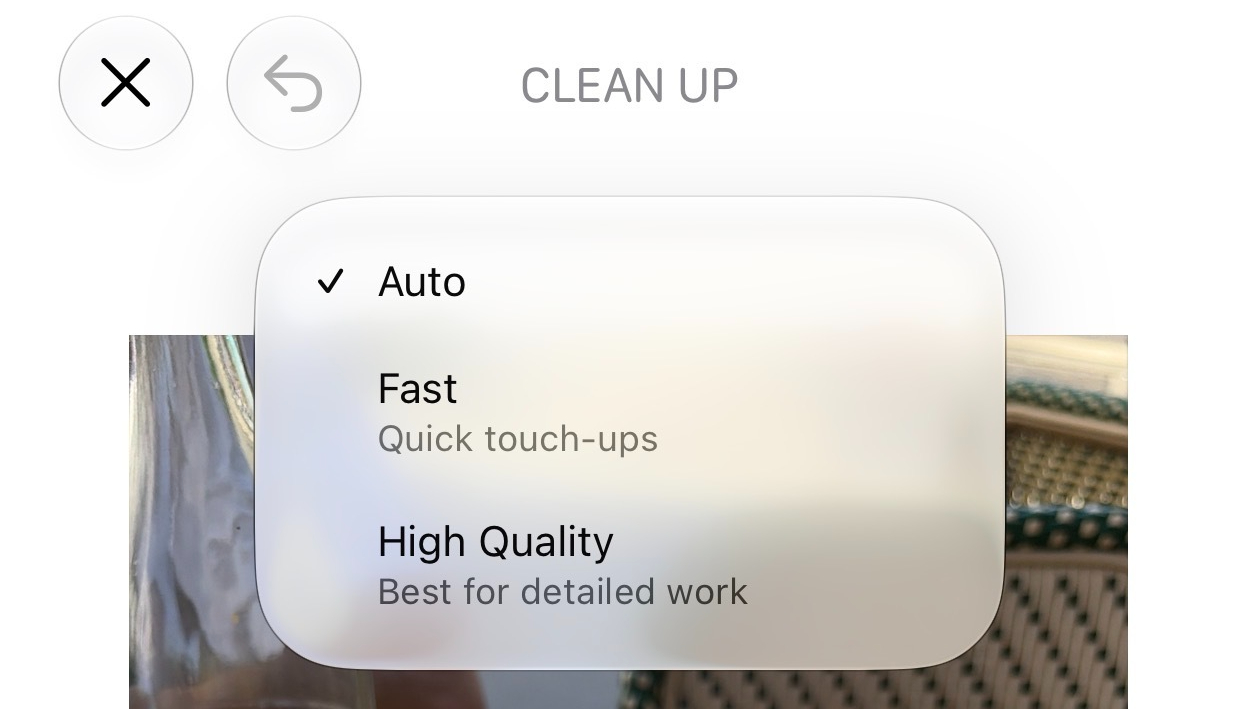
For this comparison, I stuck to ‘Auto’ to test how well my iPhone recognizes when (and when not) to use the more power-intensive ‘High Quality’ version of Clean Up — and because most people will use Clean Up in this default ‘Auto’ mode. I also wanted to see whether ‘Fast’ in iOS 27 — which my iPhone surely used for a few of the photos below — is more effective than it is in iOS 26.
I've added a separate section for comparing ‘Fast’ and ‘High Quality’ results in iOS 27, which is the starkest example of how much Apple's Clean Up tool has been improved.
And, of course, my results are based on the iOS 27 developer beta, not the finished version of iOS 27. There's every chance that Clean Up will be improved further once iOS 27 proper arrives later this year.
Photo comparisons
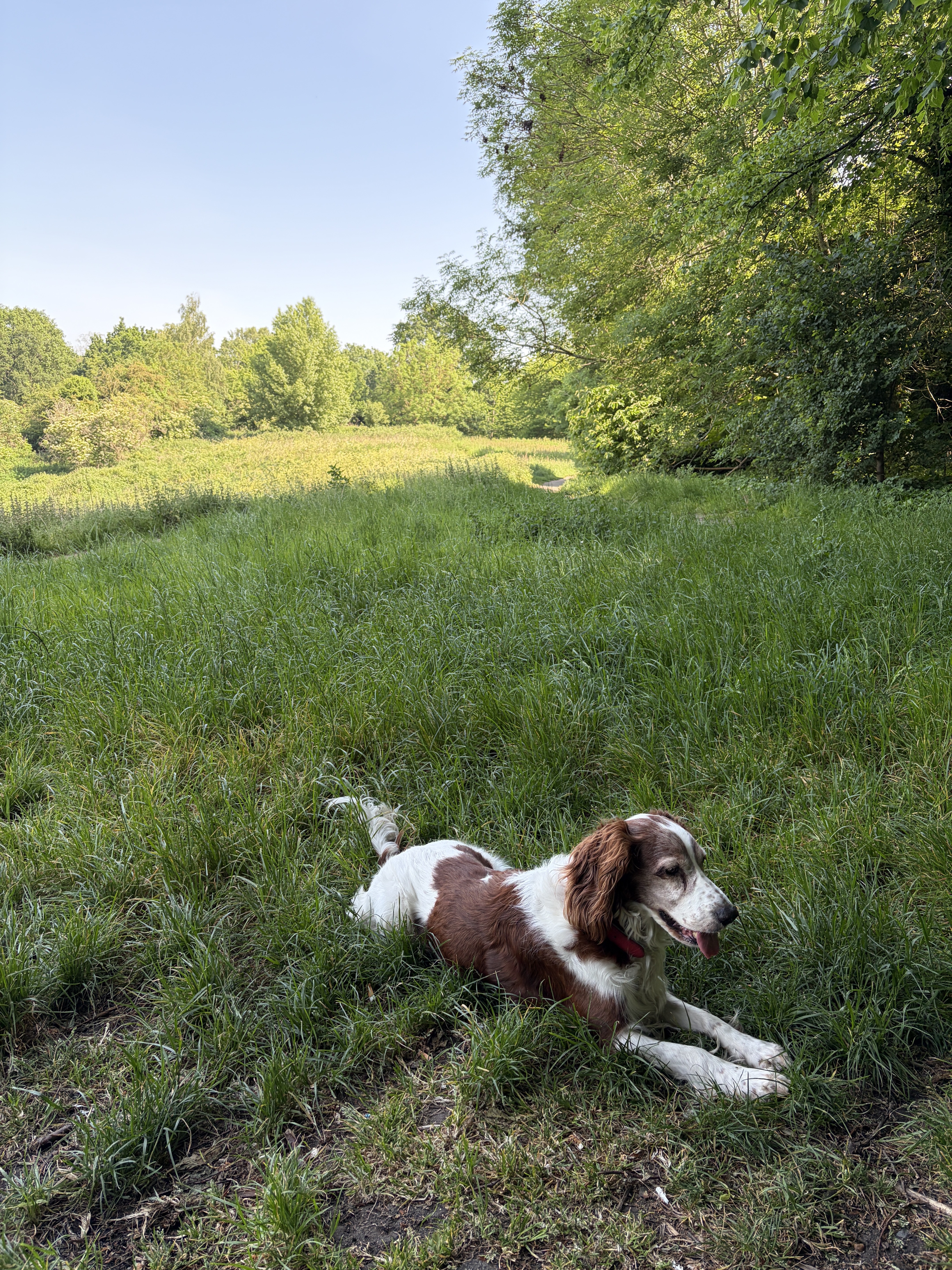
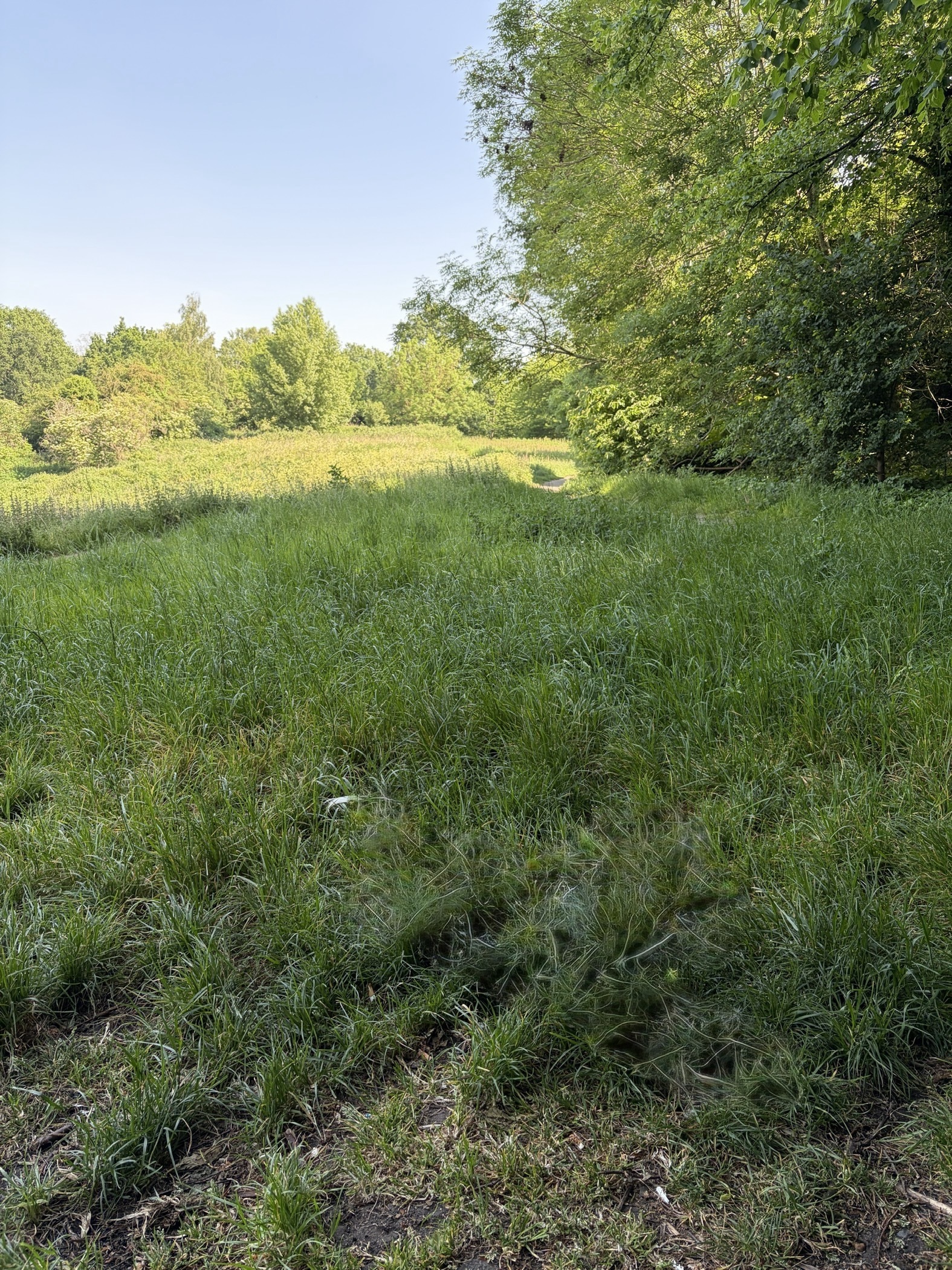
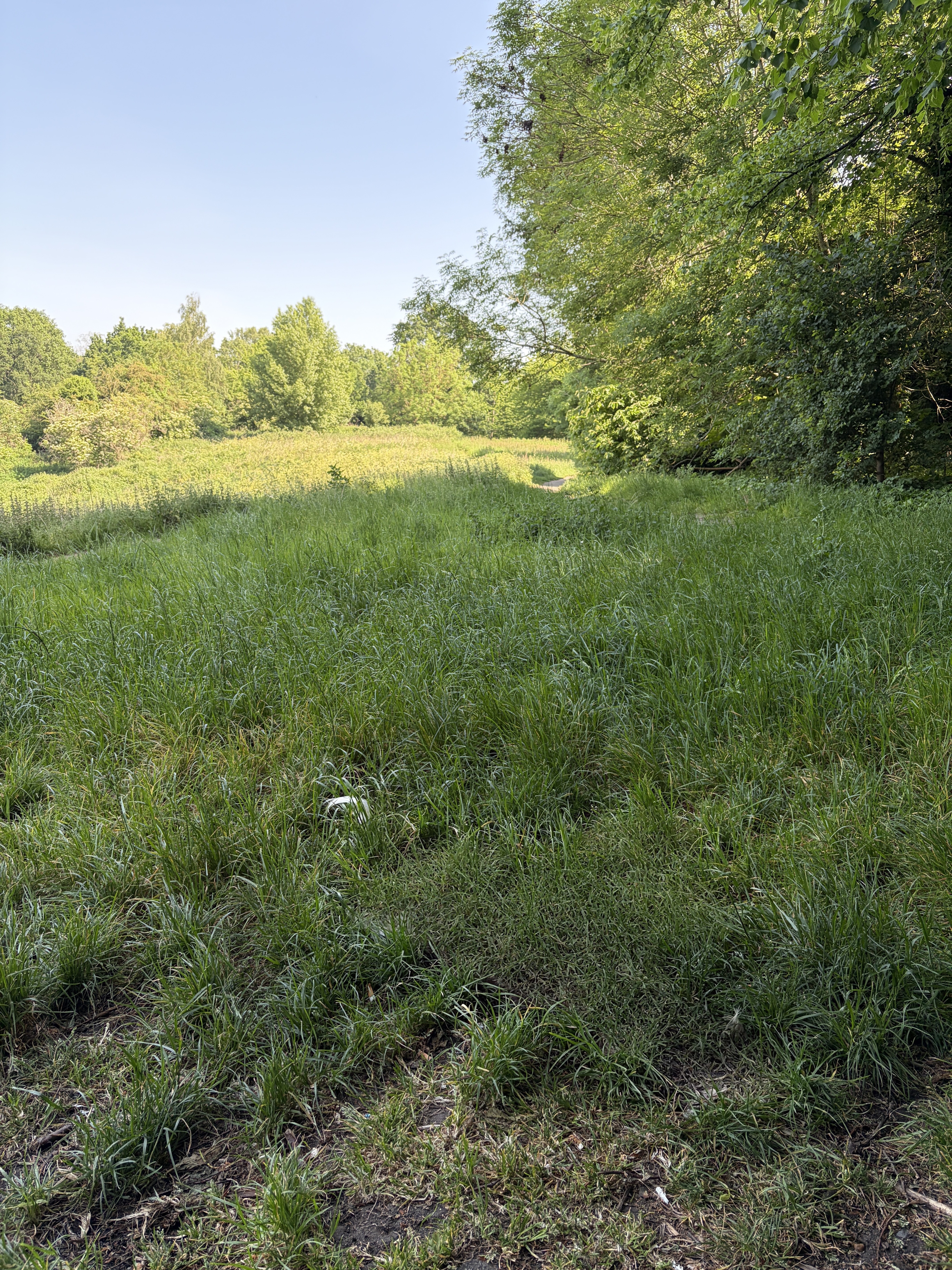
In this first example, iOS 26 leaves behind an unnatural smear in place of the dog, while iOS 27 adds a more detailed, natural-looking replacement. The latter looks more like a bush than grass — and the end of the dog's tail is still visible in both examples — but iOS 27 delivers the better overall result.
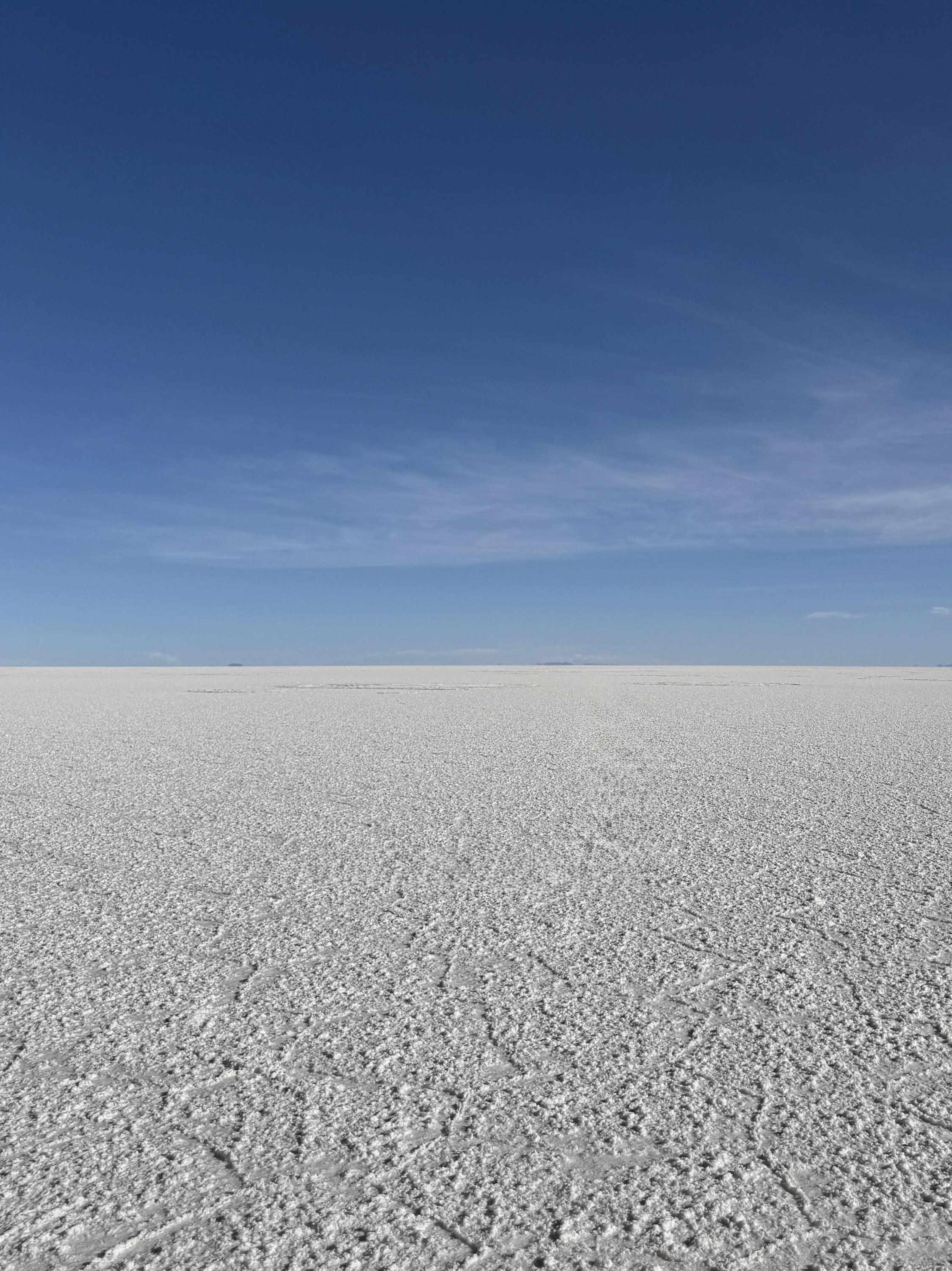

iOS 26 actually delivers the better result here, leaving behind a slightly less visible L-shape than iOS 27. I suspect this is an example of that 'Fast' version of Clean Up in action, and that if I manually selected 'High Quality', the iOS 27 version would be superior (see the 'Fast' vs 'High Quality' comparison at the bottom of the page to see what I mean). This comparison also proves that 'Fast' in iOS 27 doesn't always deliver superior results to Clean Up in iOS 26 (at least as far as the developer beta goes).
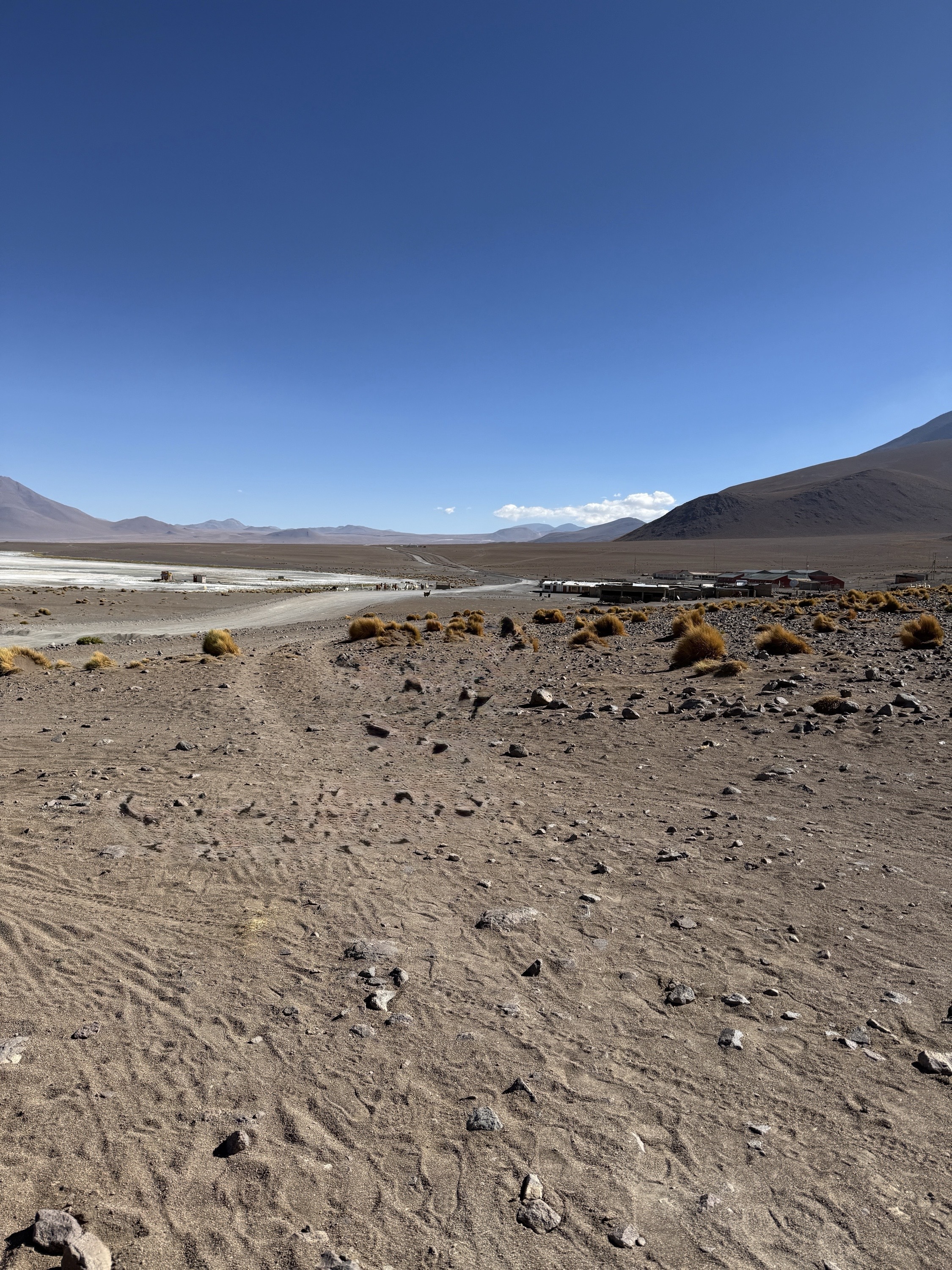
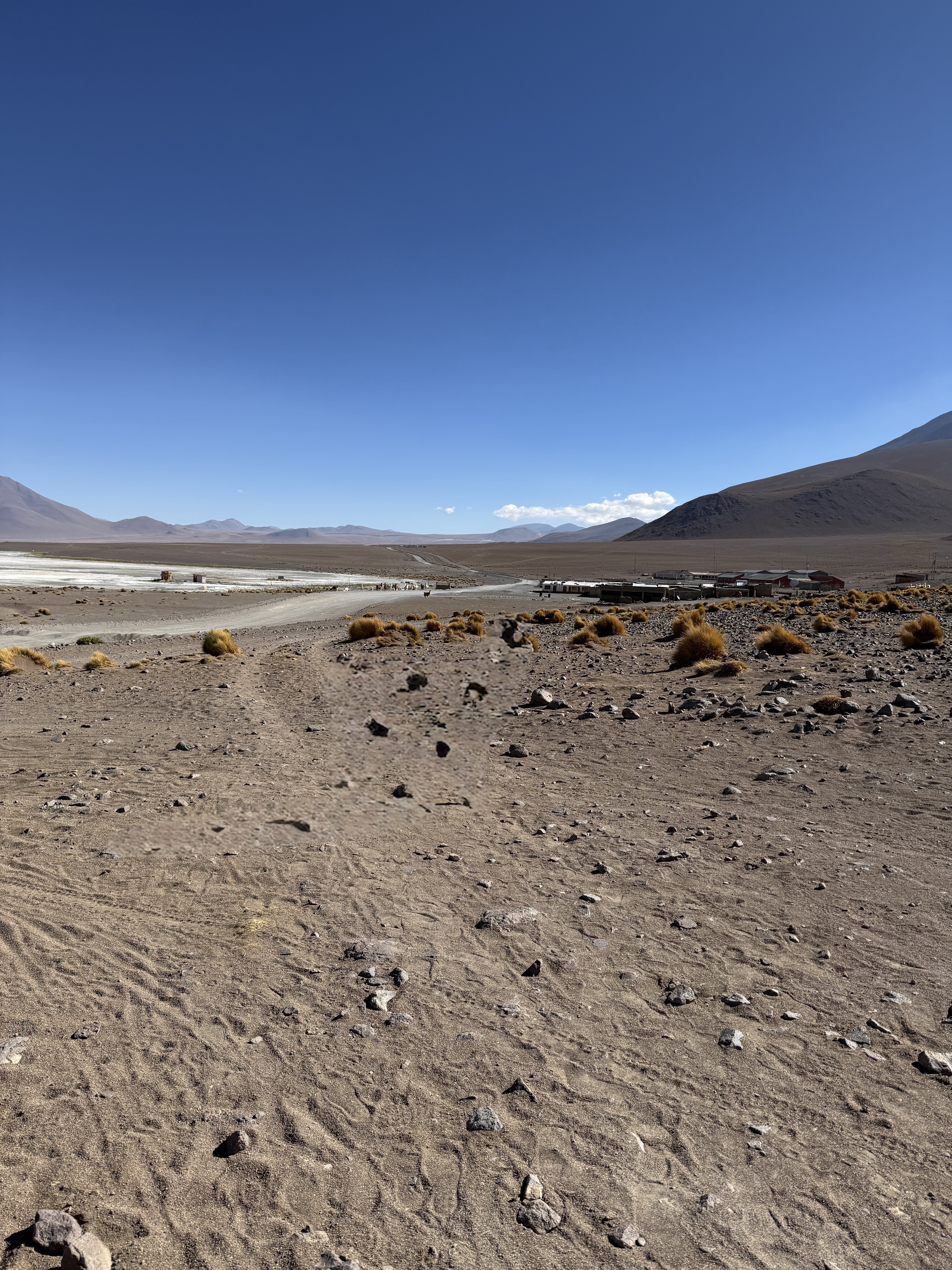
Again, I'd say iOS 26 delivers the better result in this example — focus on the llama's erased head in both photos to see what I mean.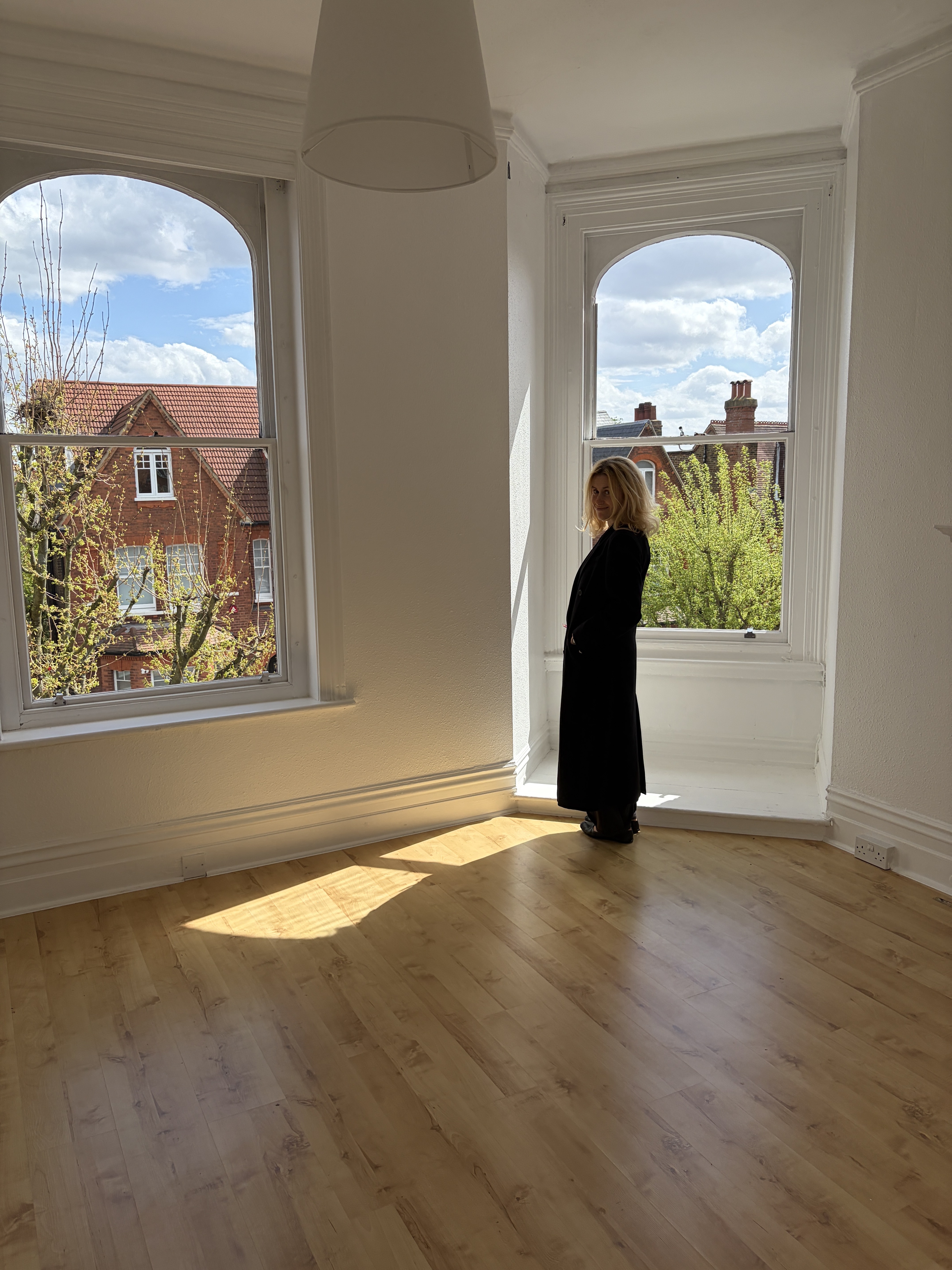
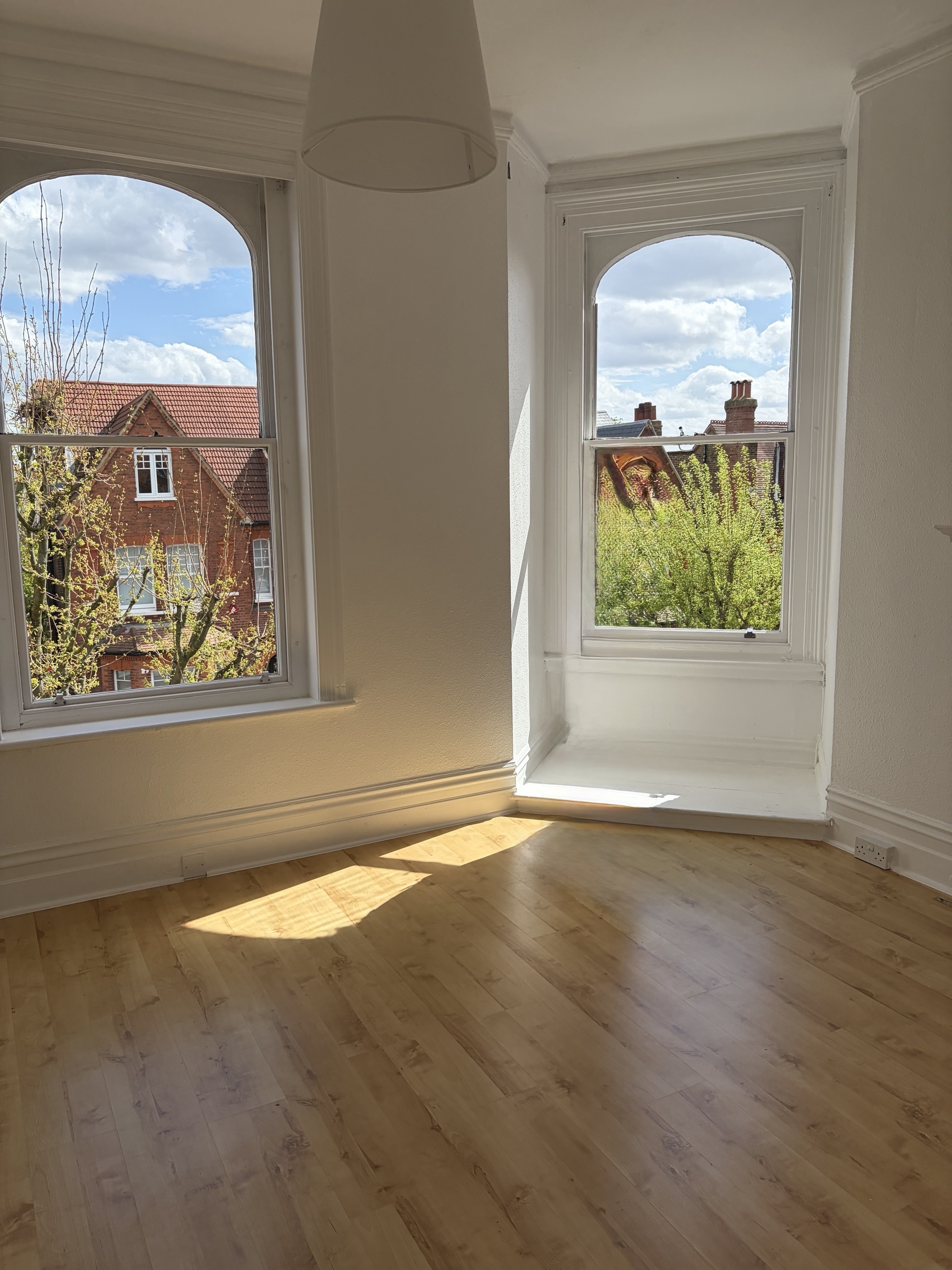
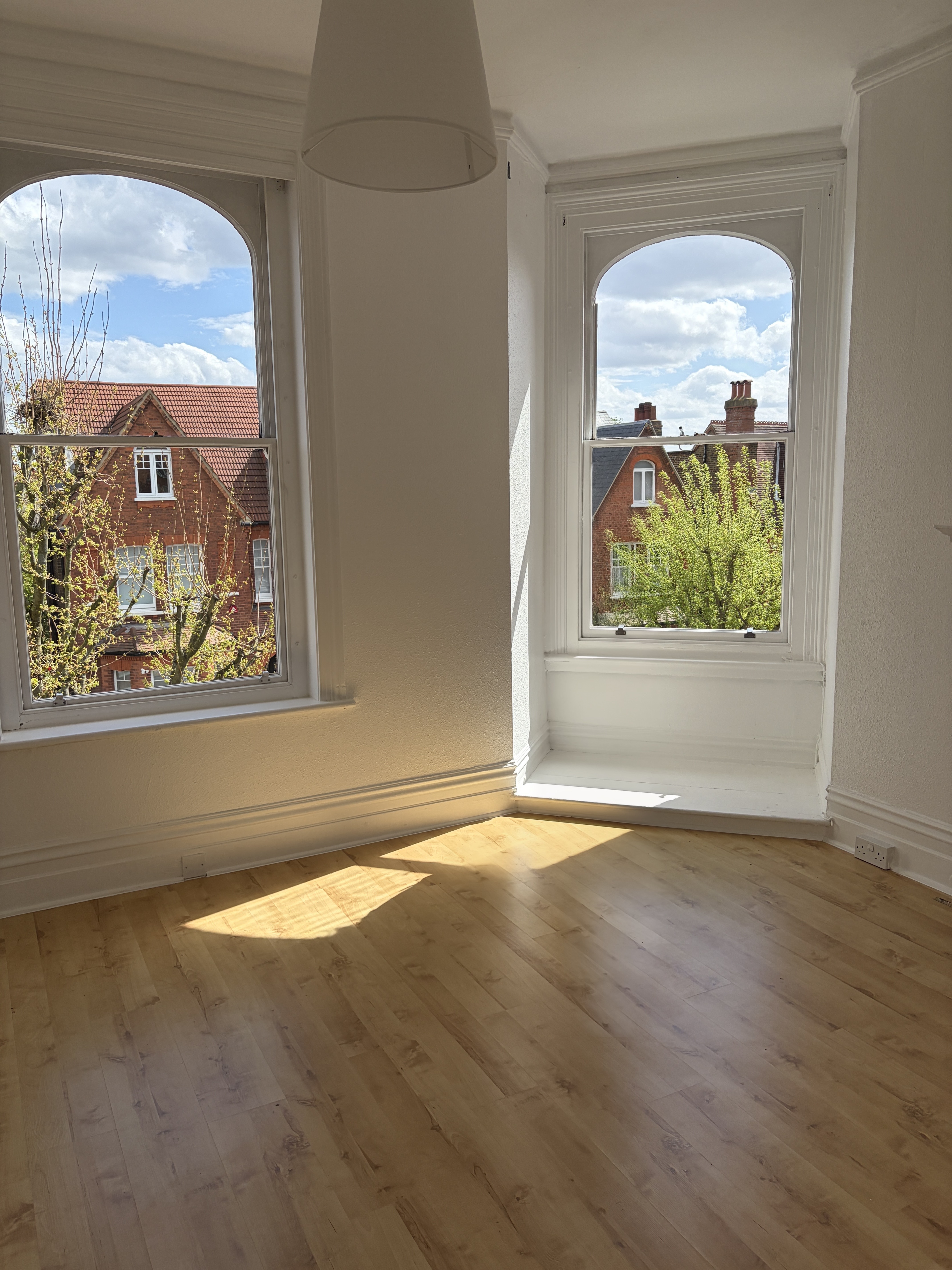



This is the first example in which I'm convinced my iOS 27-enabled iPhone switched from 'Fast' to 'High Quality'. When asking Clean Up to remove the long strands of hair over my left eye, the iOS 26 version completely botches the job, adding random ugly smears and not actually removing anything. The iOS 27 version, meanwhile, serves up a genuinely impressive result. It's not completely devoid of fakery, but it's certainly the more usable of the two results.


Now you see him, now you don't. At first glance, both iOS 26 and iOS 27 appear to do a similarly OK job at removing Bad Bunny from the roof of La Casita, but if you look closely, iOS 26 doesn't recognize that there are stairs behind him. The iOS 27 result isn't that much better, but it's the objectively superior of the two.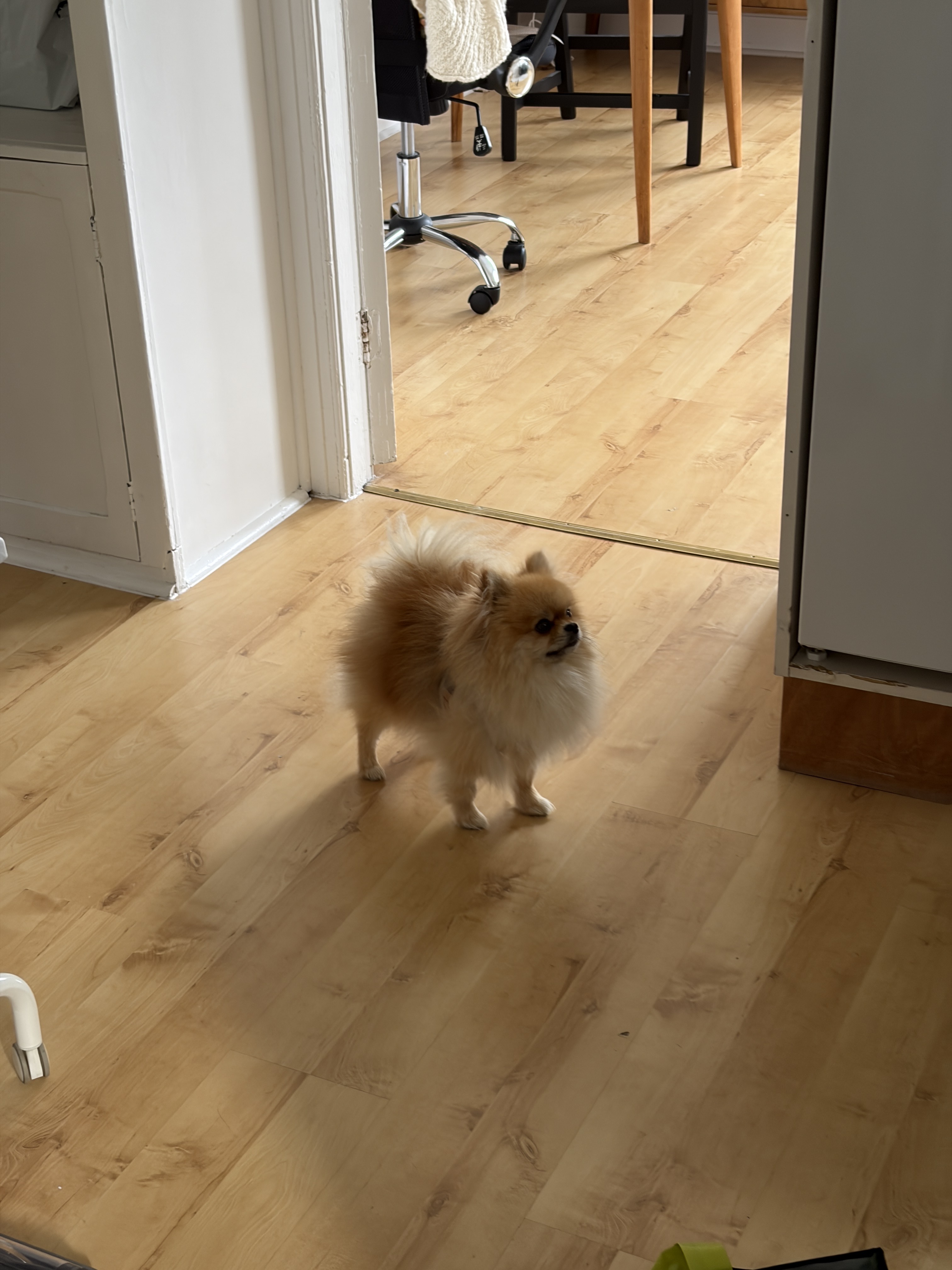
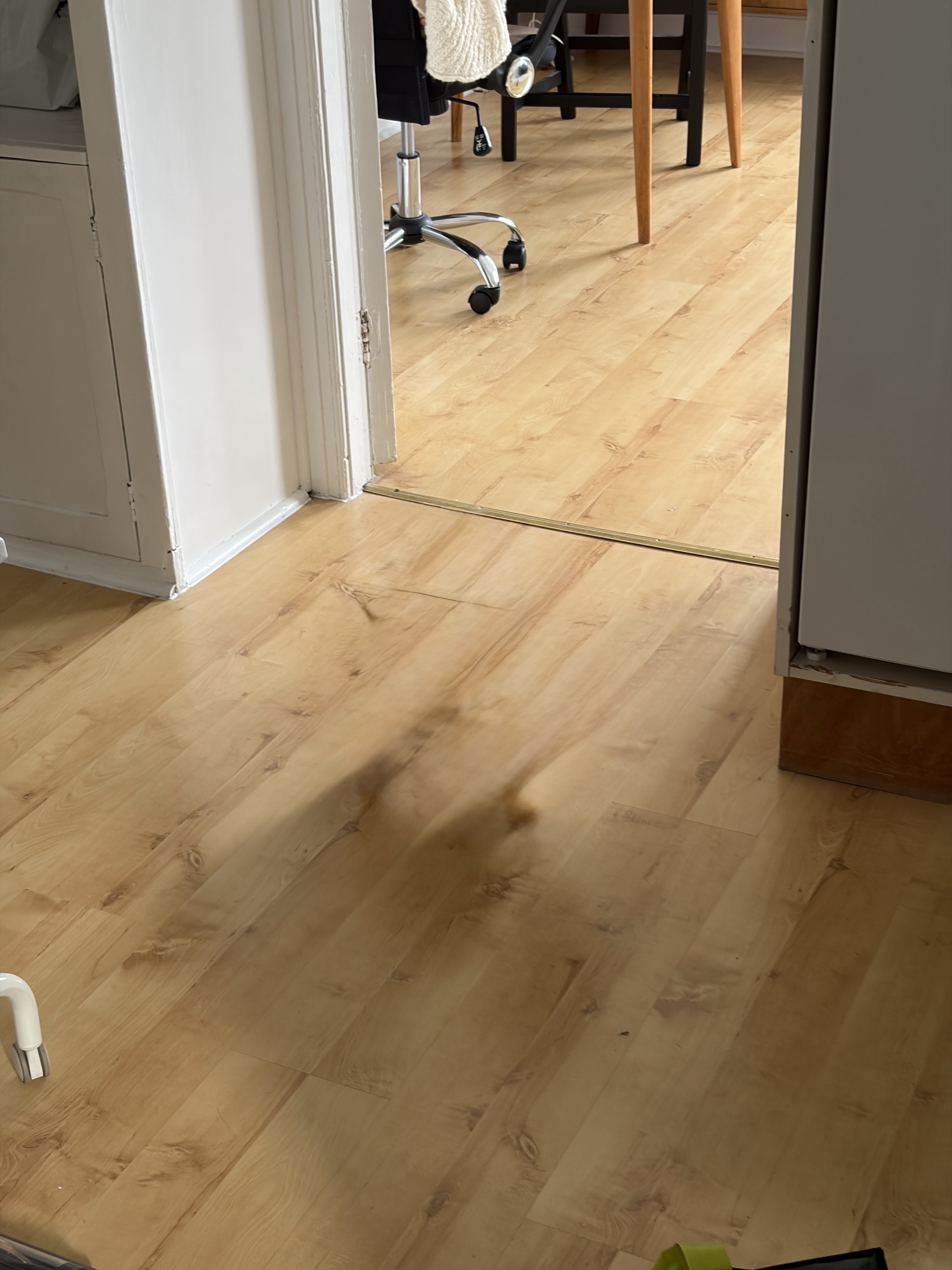
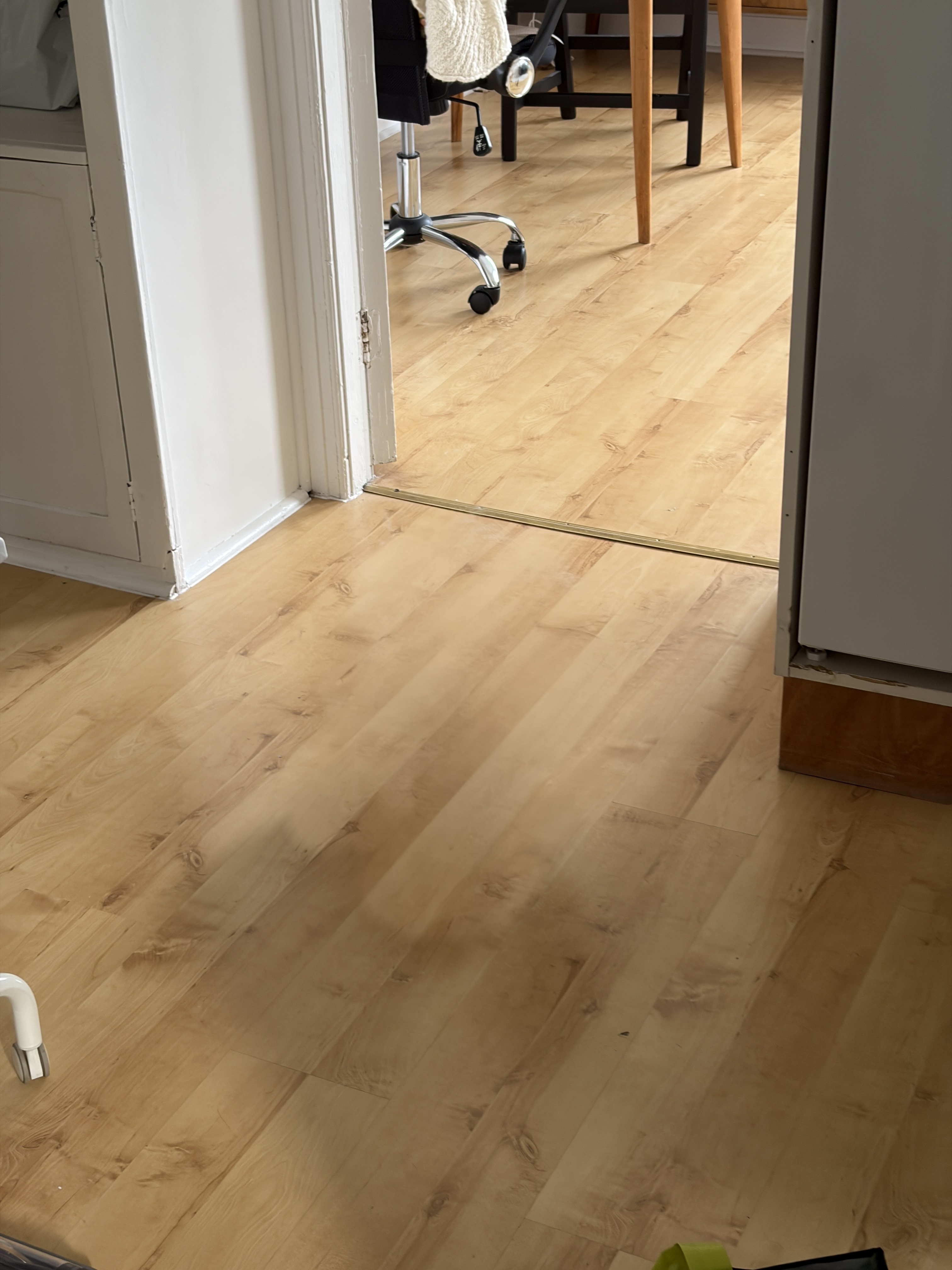
Another slim win for iOS 27 here. Neither version of Clean Up completely removes the dog's shadow, but iOS 27 makes a slightly better go of it than iOS 26.


In this example, the iOS 27 result is the much better of the two. Not only does iOS 26 leave behind a smeary cloud, but it also adds a random shape and (badly) generates an extra helping of mountain in the background. None of these mistakes are visible in the iOS 27 result.


iOS 27 wins again here, but not by much. The dark splodges left behind in the iOS 26 result are a tad more visible than those in the iOS 27 result, and I'd be more comfortable passing the latter off as reality.
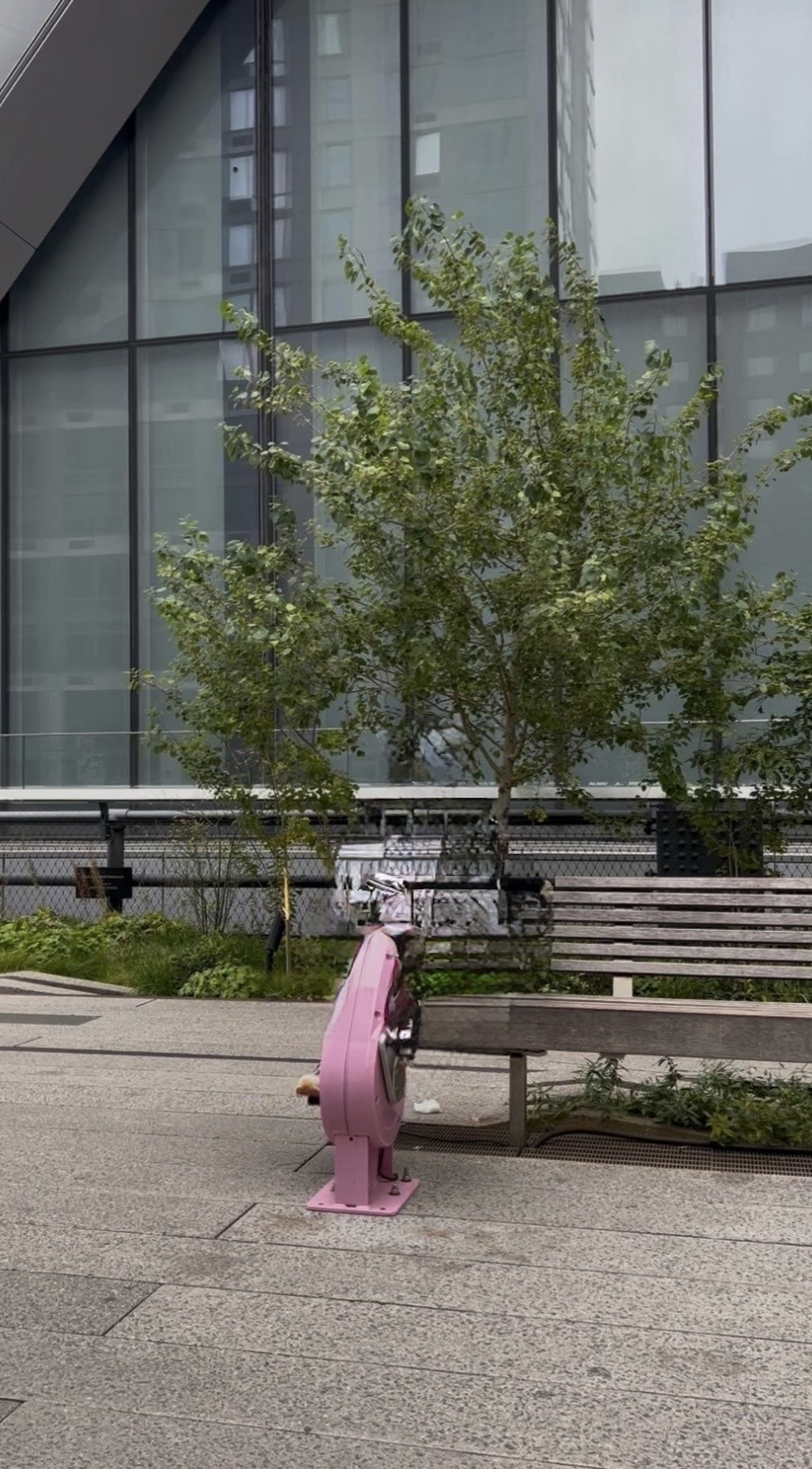
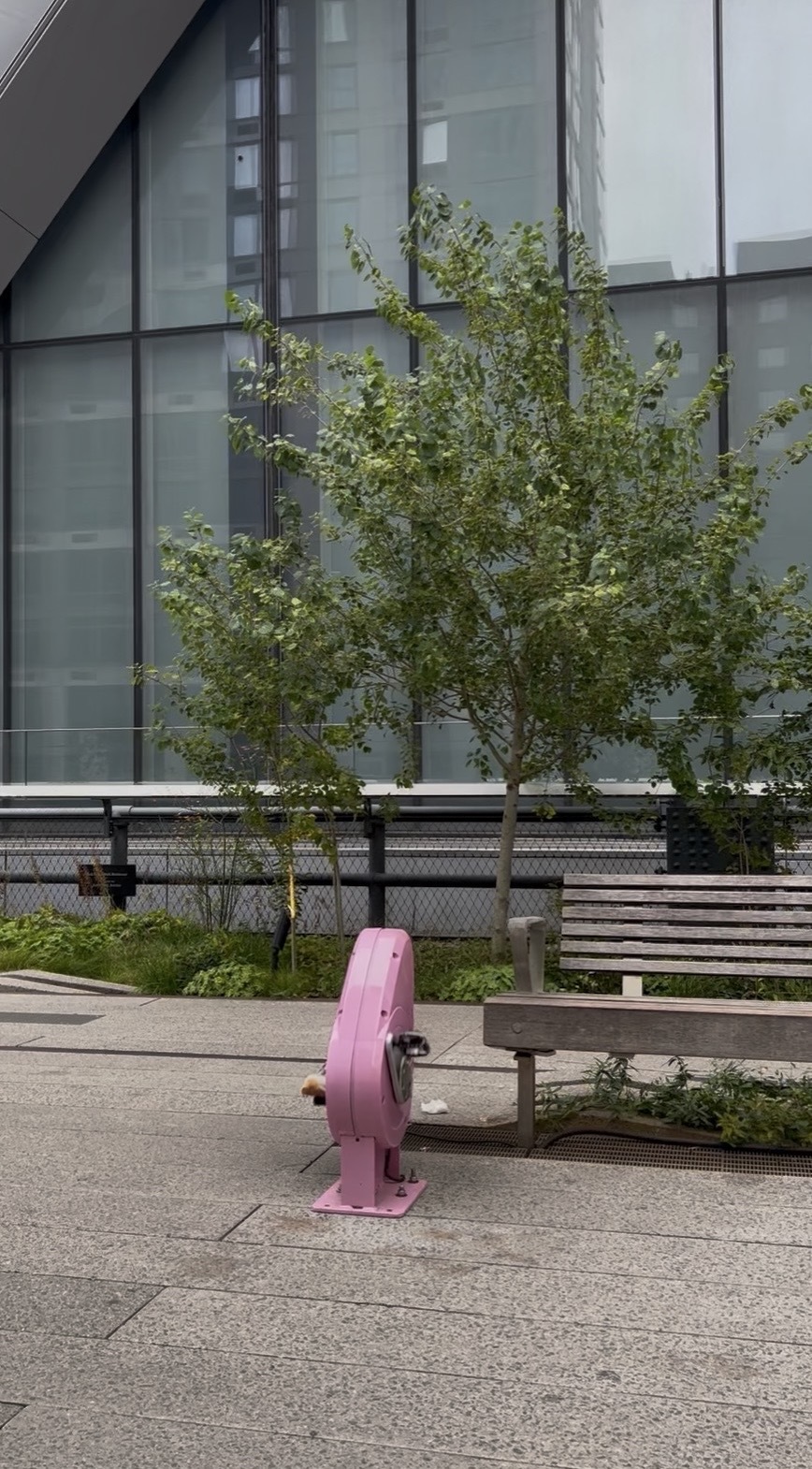
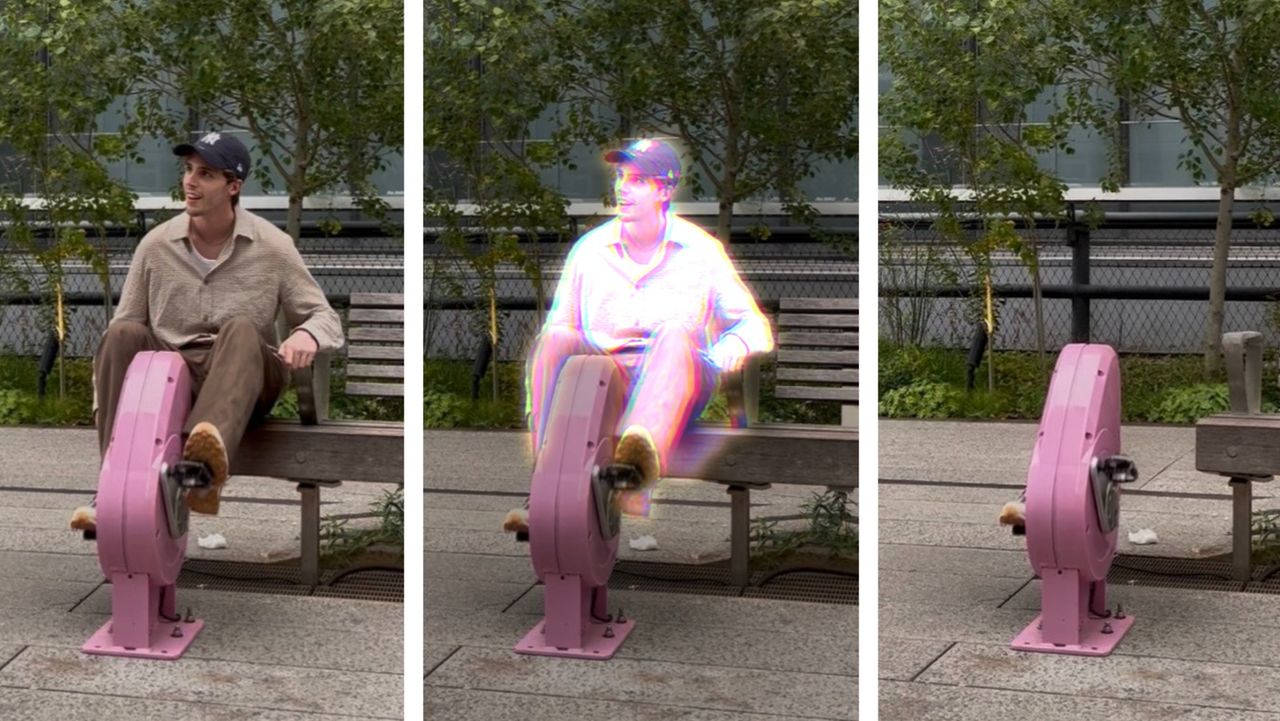
This is probably the most challenging request of the bunch. I'm sitting on a backless bench while pedalling a piece of urban gym equipment, and I asked Clean Up to remove me, but keep everything else intact. iOS 26 fails miserably, and while iOS 27 doesn't totally succeed either — it leaves my right foot behind and removes the end of the bench entirely — it does do a better job of replacing what it removes with real-looking imagery.
Fast vs High Quality in iOS 27
Here's an example of the different results you can achieve by manually selecting the 'Fast' and 'High Quality' versions of Clean Up in iOS 27.
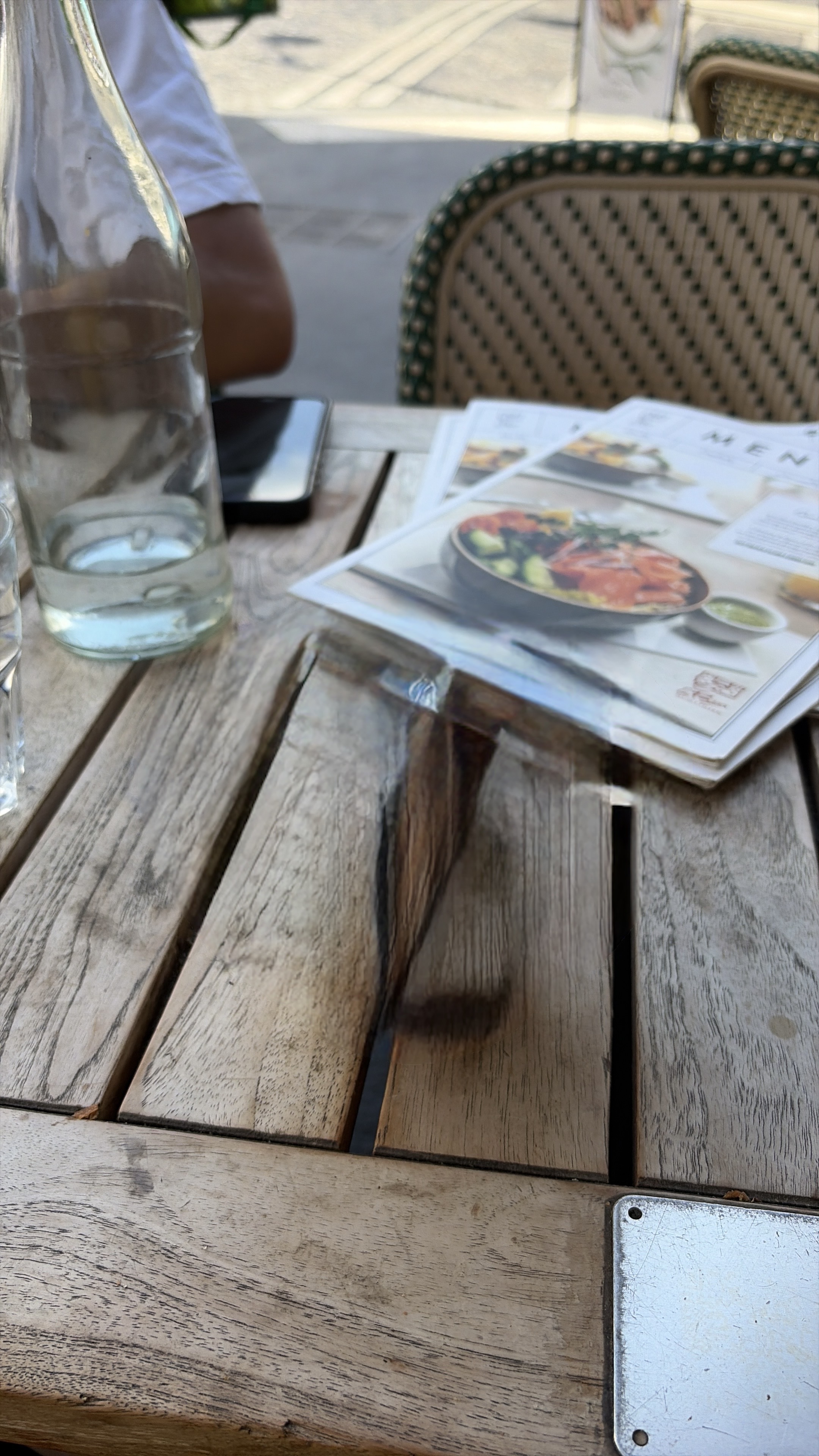
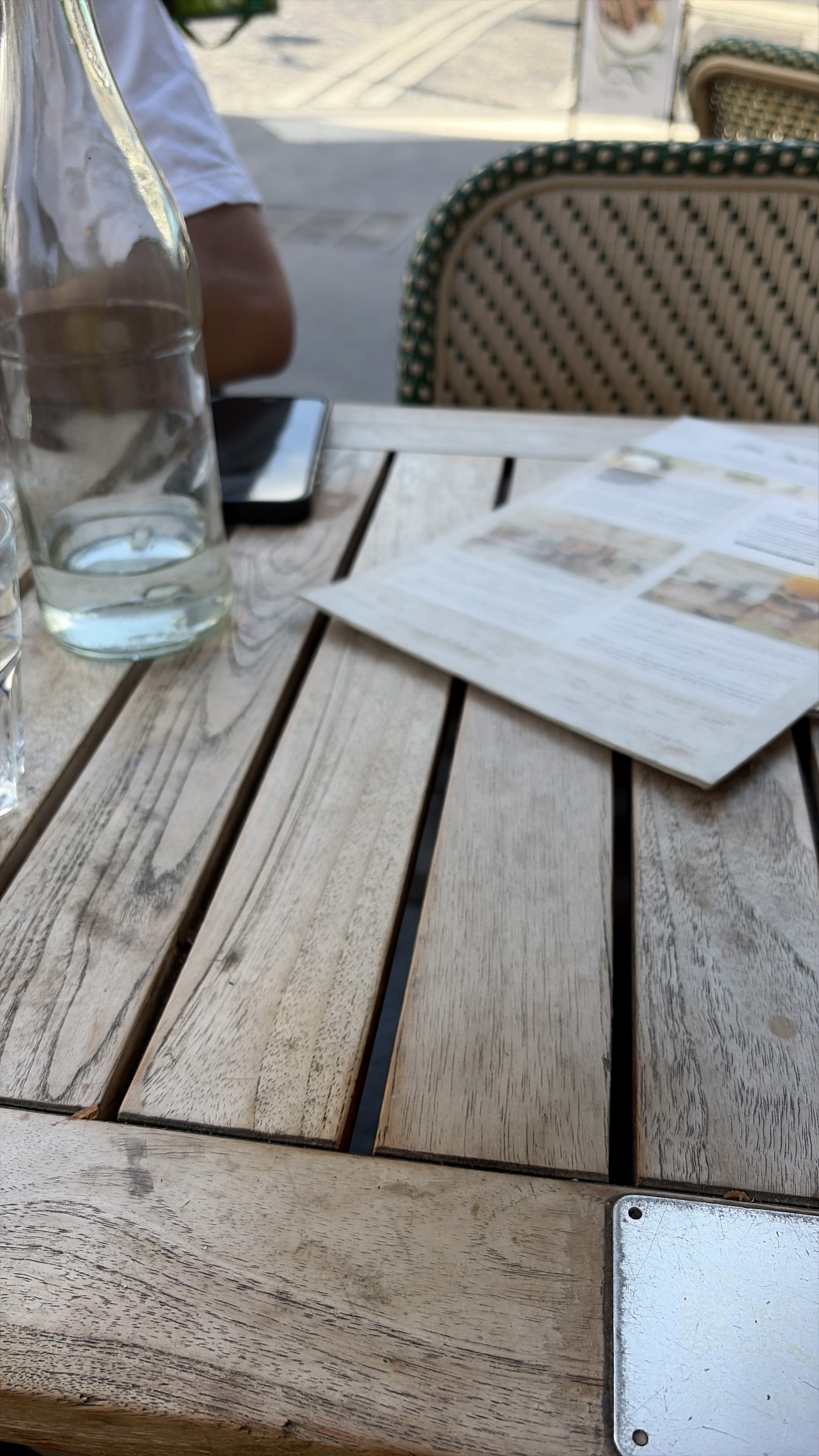
As you can see, the difference is huge. The 'Fast' result is a total mess, while the 'High Quality' result is genuinely real-looking. The latter isn't perfect — it's changed the menu art, for instance, and reduced the menu count from two to one — but I suspect that's because a portion of the menu was caught in the circle I drew around the coffee cup (and for that reason, I hope Apple reduces the thickness of the Clean Up line when iOS 27 releases in full later this year).
First impressions
In all but three of the comparisons, the iOS 27 developer beta version of Clean Up delivered the better result; however, it's clear that, when your iPhone opts for the 'Fast' version of the feature, the gulf in quality is not dramatic. In fact, in some examples, the iOS 26 result is better — so it's probably best to think of 'Fast' Clean Up and iOS 26 Clean Up as the same tool.
It's a different story for the 'High Quality' version of Clean Up in the iOS 27 developer beta, which delivered vastly superior results to Clean Up in iOS 26 when my iPhone auto-selected that option, or when I manually enabled it (as in the coffee cup example).
This proves beyond doubt that Apple has improved Clean Up in iOS 27 as it exists right now — but unless users manually select this 'High Quality' option (or always request complex edits that trigger its automatic use), the difference in Clean Up's capabilities may not be all that noticeable.
Again, though, I've been careful to specify that these iOS 27 results are from the developer beta — Apple will likely further tweak Clean Up between now and iOS 27's September release, so I expect the tool to get even better.
Share
What's Your Reaction?
 Like
0
Like
0
 Dislike
0
Dislike
0
 Love
0
Love
0
 Funny
0
Funny
0
 Angry
0
Angry
0
 Sad
0
Sad
0
 Wow
0
Wow
0